返回教程

Guide 03 · PinBoard · 7 min

PinBoard 使用指南

把会反复使用的剪贴板内容整理进 PinBoard,并用 App 关联让推荐更贴近当前工作场景。

适合谁会反复复用代码、链接、话术和素材的人。
解决什么重要片段散落在历史里,真正要复用时找不到。
读完会做创建清晰 PinBoard,并把常用 App 关联进去。
PinBoard 使用指南

PinBoard 适合保存什么

不是所有剪贴板历史都需要进入 PinBoard。判断标准很简单:如果这条内容未来还会被粘贴、引用、修改、分享或归档,就值得放进去。

适合放进 PinBoard 的内容:

  • 常用代码片段、命令、配置文件。
  • 客服回复、邮件模板、安装说明。
  • 产品发布素材、社媒文案、截图参考。
  • 研究资料、网页链接、报价说明。
  • 项目常用路径、测试账号说明、排查步骤。

不太适合放进 PinBoard 的内容:

  • 一次性验证码、临时口令。
  • 只中转一次的短文本。
  • 已经过期的调试信息。
  • 不希望长期保存的敏感内容。

建议的整理方式

1. 按场景创建 PinBoard

PinBoard 最好服务一个明确场景。不要只创建“临时”“杂项”这种很宽泛的板子,否则后面会越来越难找。

更推荐这样的命名:

  • Code Snippets:代码片段、命令、配置。
  • Support Replies:客服回复、排查步骤、安装说明。
  • Research:网页资料、引用段落、参考链接。
  • Launch Assets:发布素材、宣传文案、截图说明。
  • Personal Templates:个人常用模板、签名、格式化文本。
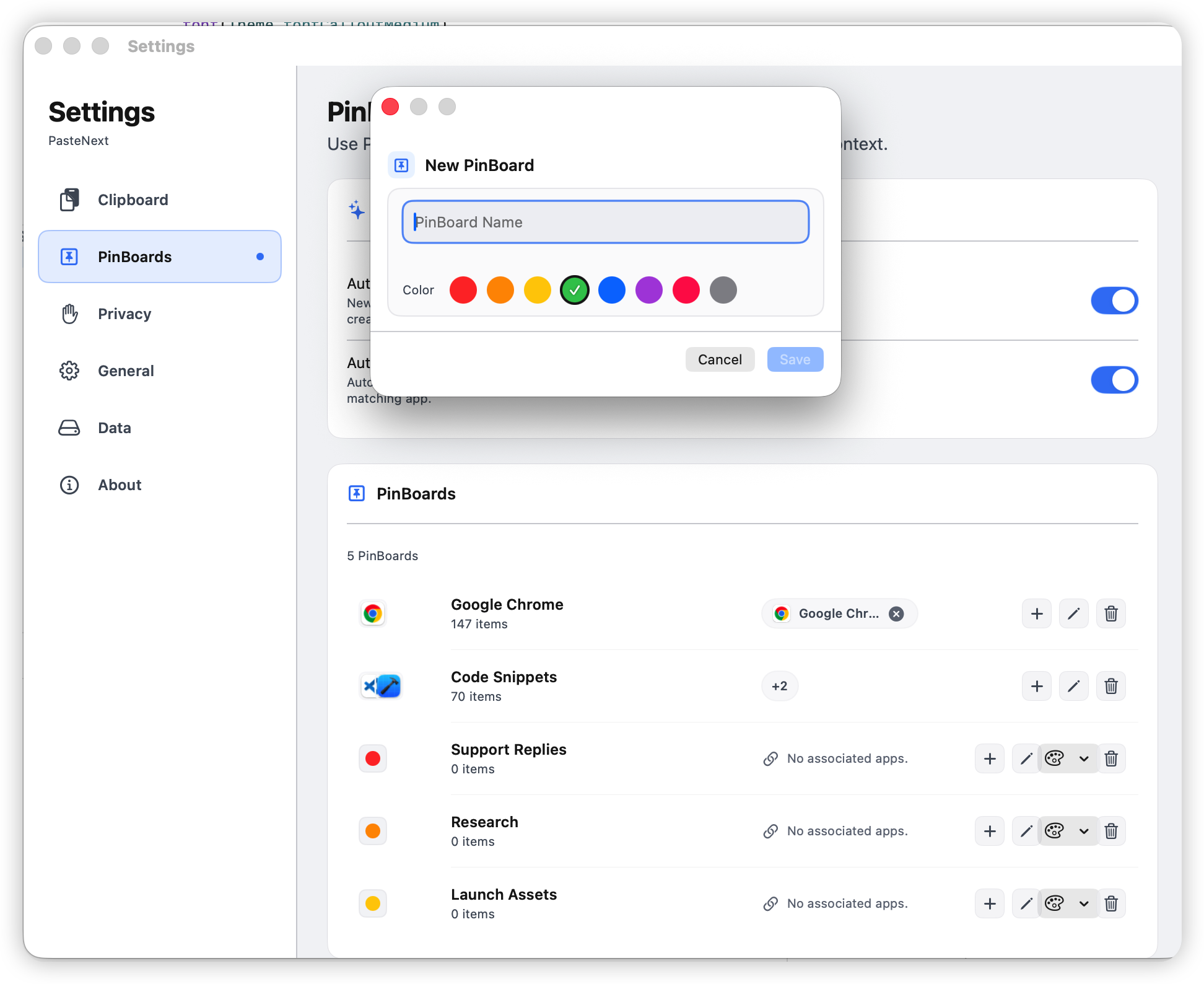
创建或选择 PinBoard 的界面,展示几个清晰命名的 PinBoard

2. 把可复用内容放进去

当你在历史记录里找到一条未来还会使用的内容时,把它加入对应的 PinBoard。这样它不会只停留在时间线里,而是进入一个稳定的工作区。

建议从高频内容开始整理,不需要一次性整理所有历史。你可以先做三件事:

  1. 找出最近一周重复复制过的内容。

  2. 把它们分到 2 到 4 个 PinBoard。

  3. 删除或忽略明显不会再用的临时内容。

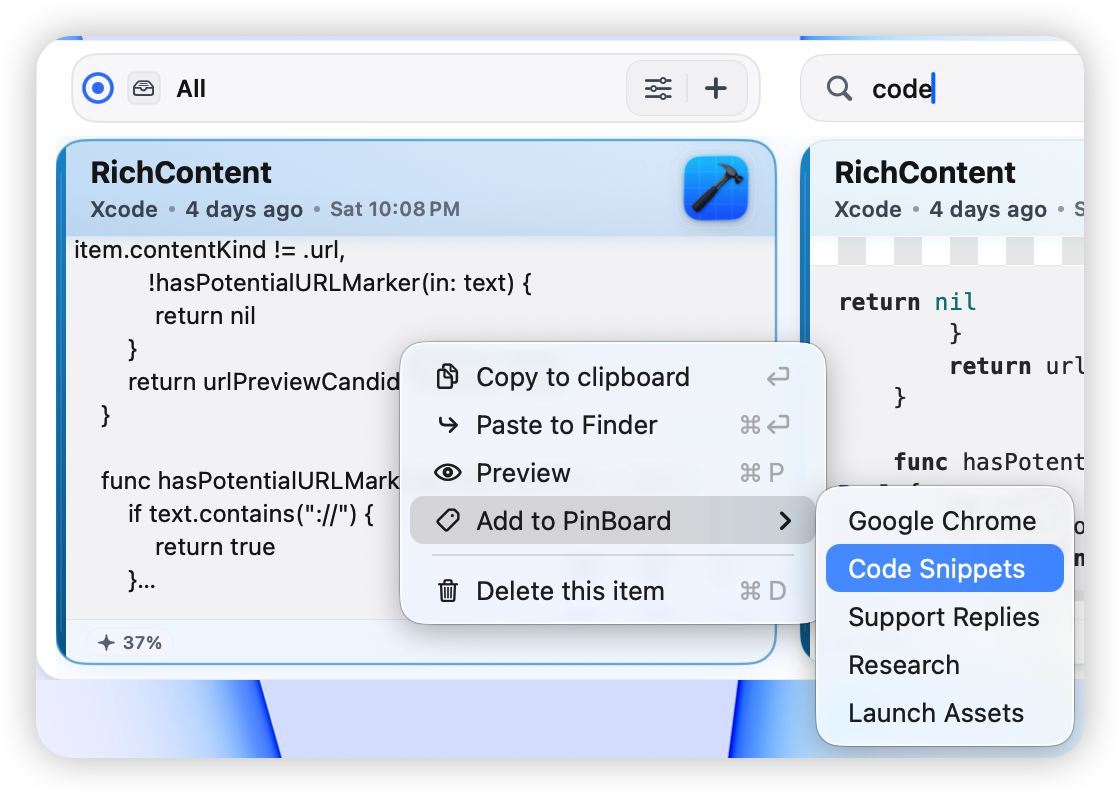
在某条剪贴板记录上选择 PinBoard 或添加到 PinBoard

3. 用 PinBoard 过滤当前内容

当你只想看某个工作区的内容时,选择对应的 PinBoard。面板会优先显示这个 PinBoard 里的记录,避免被全部剪贴板历史干扰。

这个方式适合在固定场景里连续工作,比如:

  • 写代码时只看 Code Snippets。
  • 回复用户时只看 Support Replies。
  • 准备发布时只看 Launch Assets。
  • 做资料整理时只看 Research。
选择某个 PinBoard 后,列表只显示相关内容

使用 Auto PinBoard 推荐

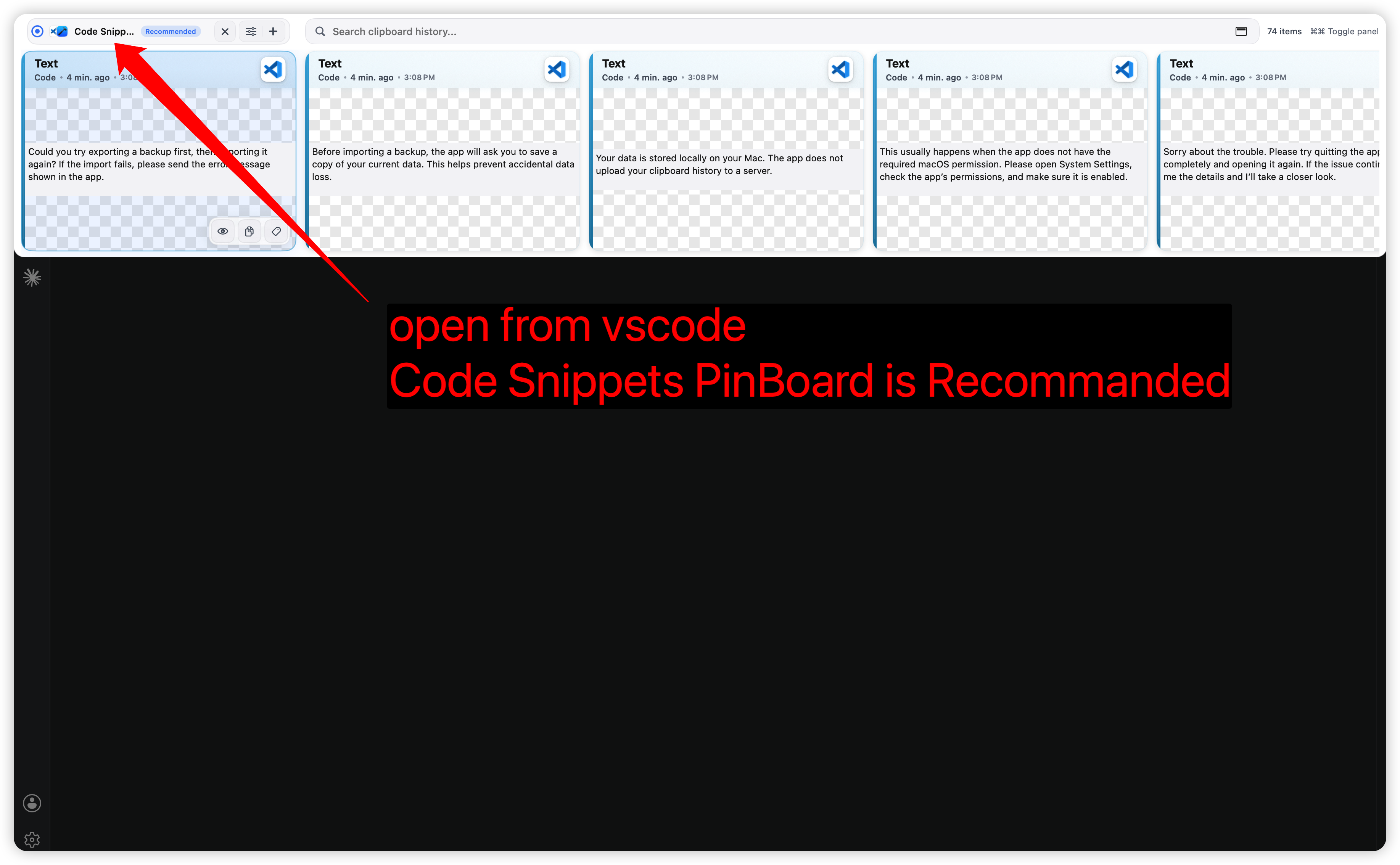
Auto PinBoard 会根据当前 App 和使用上下文,推荐更可能相关的 PinBoard。比如从 Chrome 打开面板时,可能推荐 Research;从 VS Code 或 Xcode 打开时,可能推荐 Code Snippets。

你可以把常用 App 和 PinBoard 建立关联,让推荐更稳定。

关联 App 和 PinBoard

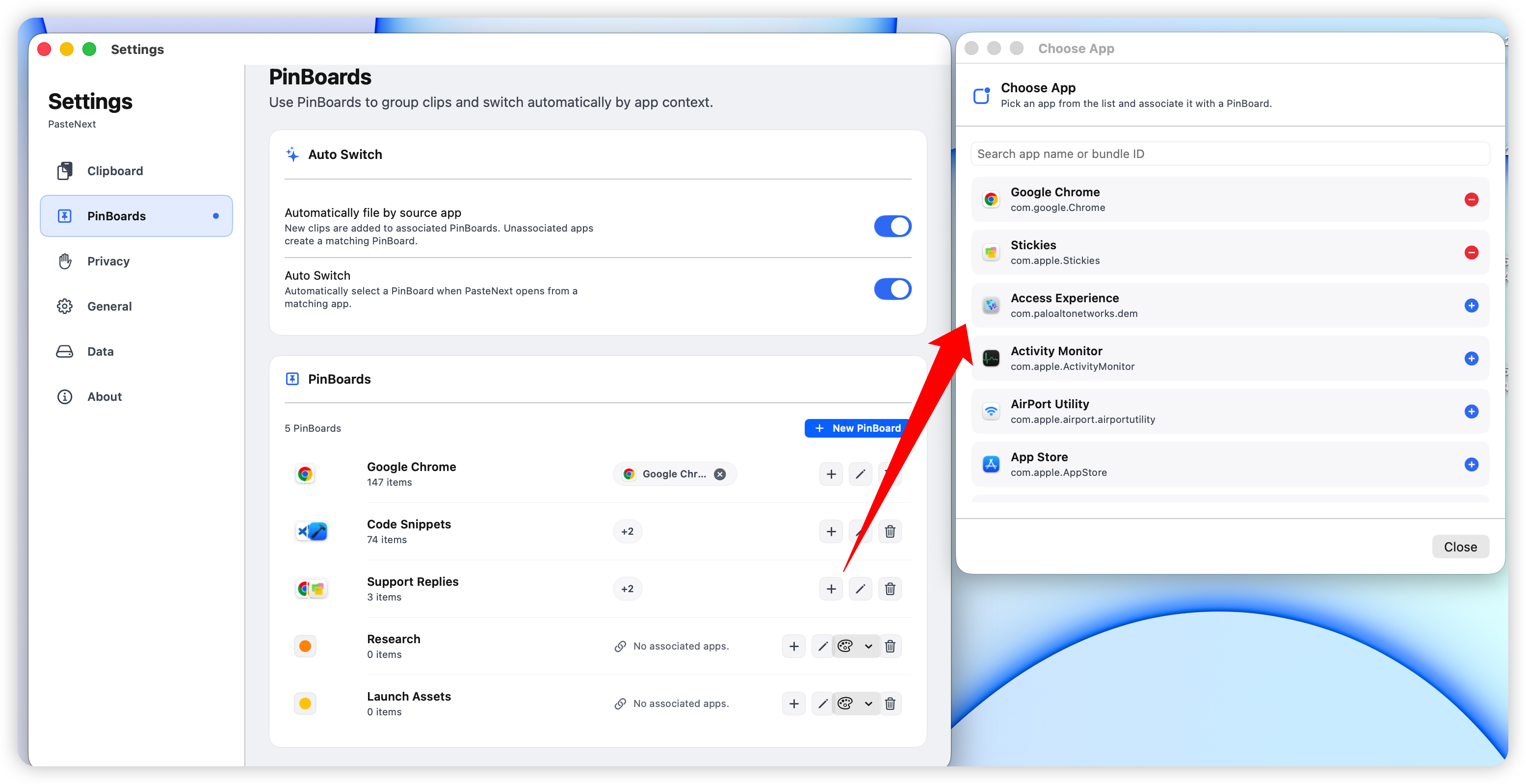
进入设置里的 PinBoard 相关设置,选择一个 PinBoard,然后把常用 App 加入关联列表。

建议从最明确的关系开始:

App 场景推荐关联
VS Code / XcodeCode Snippets
Chrome / SafariResearch 或 Launch Assets
Mail / MessagesSupport Replies
设计或截图工具Launch Assets 或 Visual References
PinBoard 设置页中,把 App 关联到某个 PinBoard

接受或忽略推荐

当 PasteNext 推荐一个 PinBoard 时,你可以直接进入它,也可以忽略这次推荐。推荐不必每次都完全正确,它的价值是减少你手动筛选的次数。

如果推荐经常不准,通常有两个原因:

  • PinBoard 主题太宽泛,比如把代码、截图、客服话术都放在一个板子里。
  • App 关联太少,PasteNext 无法判断当前场景更适合哪个 PinBoard。

日常工作流示例

代码工作流

  1. 在 VS Code 或 Xcode 中复制代码、命令或错误日志。

  2. 打开 PasteNext,查看是否推荐 Code Snippets。

  3. 把会复用的代码加入 Code Snippets。

  4. 下次需要时,直接选择 Code Snippets 搜索或复制。

从代码编辑器场景打开面板,并推荐 Code Snippets

资料整理工作流

  1. 在浏览器里复制网页段落、链接、标题或截图。

  2. 打开 PasteNext,选择 Research。

  3. 把有长期价值的资料保存到 Research。

  4. 项目结束时,可以只导出相关 PinBoard 做归档。

客服回复工作流

  1. 把常用回复、安装说明、排查步骤放进 Support Replies。

  2. 回复用户前打开 PasteNext。

  3. 选择对应回复,复制或直接粘贴。

  4. 如果某段回复更新了,及时替换旧版本。

命名和维护建议

一个好用的 PinBoard 通常满足三个条件:名字清楚、内容稳定、边界明确。

建议这样维护:

  • 每个 PinBoard 只服务一个主要场景。
  • 名称尽量使用名词短语,不要太长。
  • 定期清理过期内容,尤其是代码、价格、活动文案。
  • 重要内容可以配合颜色或标签识别。
  • 项目结束后,把相关 PinBoard 导出备份。

常见问题

PinBoard 和普通标签有什么区别?

在 PasteNext 里,PinBoard 更像一个面向复用场景的工作区。你可以把它理解为“常用内容板”,而不是单纯给历史记录打标签。

我应该创建多少个 PinBoard?

一开始建议 3 到 5 个就够了。太少会混乱,太多会增加选择成本。等使用场景稳定后,再拆分更细的 PinBoard。

推荐的 PinBoard 不准确怎么办?

先检查 PinBoard 是否太宽泛,再检查是否关联了正确的 App。把 VS Code、Xcode、Chrome、Safari 这类高频 App 关联好,通常会明显改善推荐。

删除 PinBoard 会怎样?

删除前请确认里面没有需要保留的内容。如果只是想清理普通历史,不一定要删除 PinBoard;可以优先清理历史记录,保留可复用内容。

Back to Tutorials

Guide 03 · PinBoard · 7 min

PinBoard Guide

Organize reusable clipboard items into PinBoards and link apps so recommendations match your current work context.

Who it is forPeople who reuse code, links, replies, and project assets.
What it solvesImportant clips get buried in history and are hard to find later.
You will learnCreate clear PinBoards and connect them to the apps you use.
PinBoard guide

What belongs in PinBoard

Not every clipboard item needs a PinBoard. Use a simple rule: if the content will be pasted, referenced, edited, shared, or archived again, it is worth saving.

Good PinBoard content includes:

  • Common code snippets, commands, and config files.
  • Support replies, email templates, and setup instructions.
  • Launch assets, social copy, and screenshot references.
  • Research notes, web links, and quote details.
  • Project paths, test account notes, and troubleshooting steps.

Content that usually does not belong:

  • One-time verification codes or temporary passwords.
  • Short text that is only passed through once.
  • Expired debug information.
  • Sensitive content you do not want to keep long term.

Recommended organization

1. Create PinBoards by scenario

A PinBoard should serve a clear scenario. Avoid broad boards like Temporary or Misc, because they become hard to search later.

Better examples:

  • Code Snippets: commands, code, and configuration.
  • Support Replies: customer replies, troubleshooting steps, setup notes.
  • Research: web sources, quoted paragraphs, reference links.
  • Launch Assets: release copy, marketing text, screenshot notes.
  • Personal Templates: signatures, personal snippets, formatted text.
Create or choose clearly named PinBoards

2. Save reusable content

When you find a history item you will use again, add it to the right PinBoard. It moves from a time-based history stream into a stable workspace.

Start with high-frequency content. You do not need to organize every old record at once:

  1. Find content you copied repeatedly in the last week.

  2. Sort it into 2 to 4 PinBoards.

  3. Delete or ignore obvious temporary content.

Add a clipboard item to a PinBoard

3. Filter current work by PinBoard

When you want to see only one workspace, choose that PinBoard. The panel prioritizes records from it and reduces noise from the full clipboard history.

  • Use Code Snippets while coding.
  • Use Support Replies when answering users.
  • Use Launch Assets while preparing a release.
  • Use Research while collecting sources.
Panel filtered to a selected PinBoard

Use Auto PinBoard

Auto PinBoard recommends the board that likely matches the current app and context. From Chrome, it may suggest Research. From VS Code or Xcode, it may suggest Code Snippets.

Link the apps you use most to PinBoards so recommendations become more stable.

Link apps to PinBoards

Open PinBoard settings, choose a board, and add related apps to its linked-app list.

App contextSuggested PinBoard
VS Code / XcodeCode Snippets
Chrome / SafariResearch or Launch Assets
Mail / MessagesSupport Replies
Design or screenshot toolsLaunch Assets or Visual References
PinBoard settings with app links

Accept or ignore recommendations

When PasteNext recommends a PinBoard, you can enter it or ignore the suggestion. It does not need to be perfect every time; its value is reducing manual filtering.

If recommendations are often wrong, your boards may be too broad or too few apps may be linked.

Workflow examples

Code workflow

  1. Copy code, commands, or error logs from VS Code or Xcode.

  2. Open PasteNext and see whether Code Snippets is recommended.

  3. Add reusable code to Code Snippets.

  4. Next time, choose Code Snippets and search or copy directly.

Code editor context recommending Code Snippets

Research workflow

  1. Copy web paragraphs, links, titles, or screenshots in the browser.

  2. Open PasteNext and choose Research.

  3. Save long-term references into Research.

  4. At the end of a project, export the related PinBoard for archive.

Support reply workflow

  1. Put common replies, setup notes, and troubleshooting steps into Support Replies.

  2. Open PasteNext before replying to a user.

  3. Choose the right reply, then copy or paste directly.

  4. When a reply changes, replace the outdated version.

Naming and maintenance

A good PinBoard has a clear name, stable content, and a defined boundary.

  • Let each PinBoard serve one main scenario.
  • Use short noun phrases for names.
  • Regularly remove outdated code, prices, and launch copy.
  • Use colors or tags for important content when helpful.
  • Export project PinBoards when the project ends.

FAQ

How is PinBoard different from a tag?

In PasteNext, a PinBoard is more like a workspace for reusable content. Think of it as a board of common clips, not just a label on history.

How many PinBoards should I create?

Start with 3 to 5. Too few becomes messy; too many adds choice overhead. Split into more boards after your workflows become clear.

What if the recommended PinBoard is wrong?

Check whether the board is too broad, then check whether the right apps are linked. Linking frequent apps such as VS Code, Xcode, Chrome, and Safari usually improves recommendations.

What happens if I delete a PinBoard?

Before deleting, make sure it does not contain content you still need. If you only want to clean ordinary history, keep reusable PinBoard content and clean history instead.