Understand copy-to-clipboard, manual paste, direct paste, and when to preview content before pasting.
Who it is forPeople who want to paste history into the target app faster and more reliably.
What it solvesUnderstand copying versus direct paste, and reduce wrong targets or formatting issues.
You will learnChoose manual paste or direct paste based on the content and target app.
Two actions to understand
Copy to clipboard
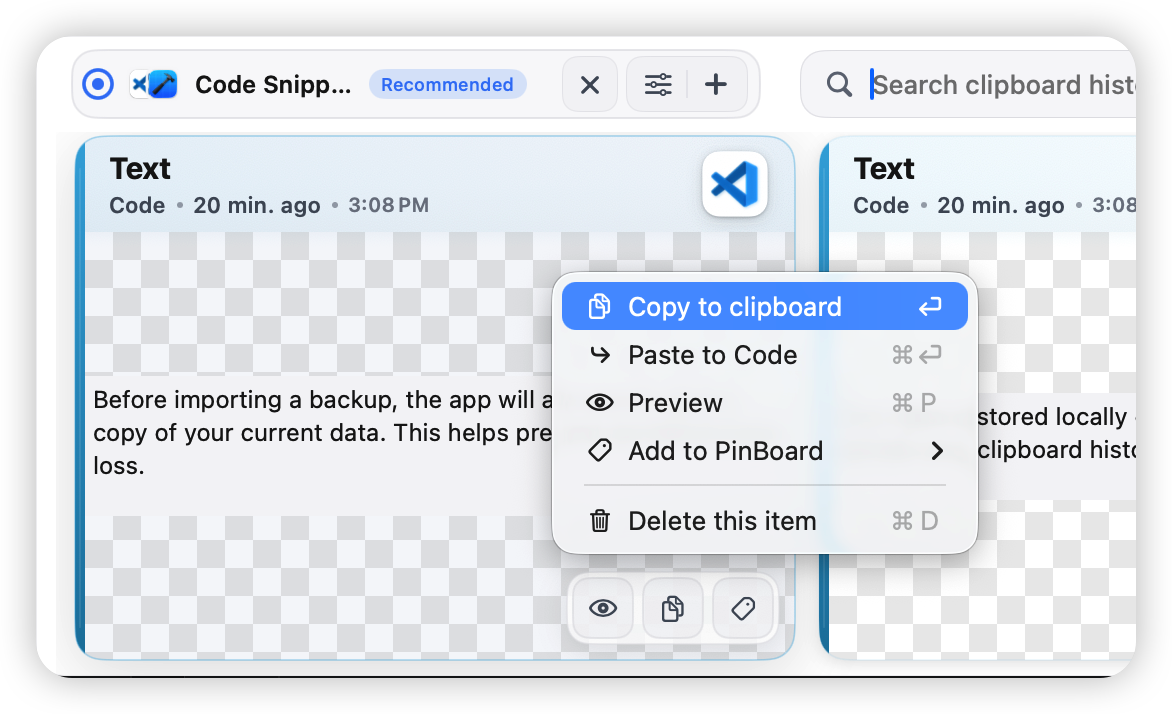
Copy to clipboard means PasteNext writes the selected history record back to the system clipboard. Then you can paste in any app with the normal system paste shortcut.
This is the safest option when you still want to switch windows, check the input location, or paste the same item in multiple places.
Paste directly into the target app
Direct paste means PasteNext tries to return to the app you were using before opening the panel, write the selected item to the clipboard, and perform paste automatically.
This is faster when the target input field is already active and you want one step from history to destination.
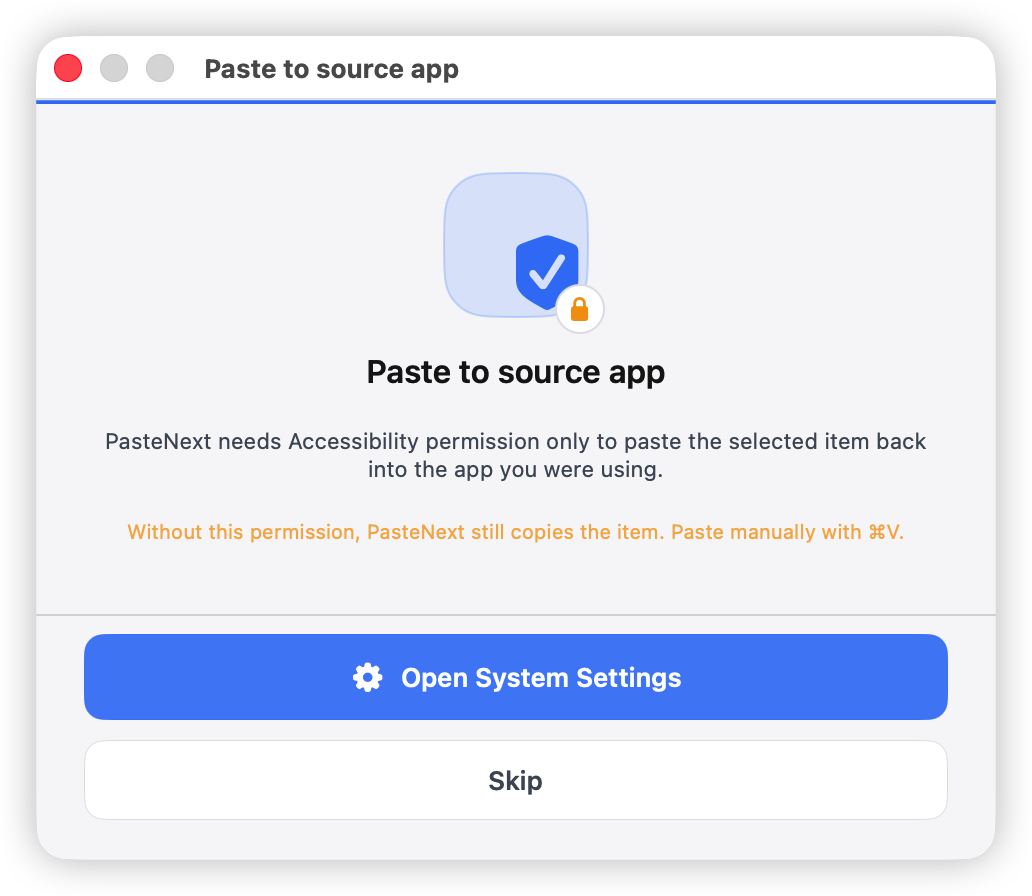
Direct paste requires Accessibility permission because PasteNext needs to switch back to the target app and perform the paste action.
Accessibility permission prompt or setting
Recommended usage
Scenario 1: You need confirmation
For long text, code, rich text, images, or files, copy first and paste manually.
Open the PasteNext panel.
Search or choose the target record.
Preview the content and confirm source and time.
Press Enter or double-click to copy it to the system clipboard.
Return to the target app and paste manually.
Scenario 2: You are filling a fixed short item
For short content you paste often, such as support replies, emails, commands, or links, direct paste can save steps.
Place the cursor in the target app input field.
Open the PasteNext panel.
Select the target record.
Use direct paste.
Confirm the content appeared in the input field.
Scenario 3: Paste reusable content from PinBoard
If the content is already organized in PinBoard, choose the board first, then copy or paste quickly.
Fixed replies.
Common code blocks.
Project paths.
Release copy.
Frequently used links.
Content types
PasteNext tries to preserve the original content type. Different content behaves differently when pasted:
Content type
Paste advice
Plain text
Copy or direct paste usually works well
Rich text
Preview first and confirm formatting fits the target app
Code snippets
Good PinBoard candidates; check indentation and symbols before pasting
Images
Confirm the target app supports image paste
Files
Confirm the file still exists and the target app supports file paste
Links
Check that the link is current and not outdated
Text cleanup
When pasting text, PasteNext performs small safe cleanups to reduce issues from the source app. For example:
Normalize line endings.
Remove common zero-width characters.
In terminal-like apps, reduce smart quote issues that can break commands.
These cleanups make paste results more stable, especially when content moves from web pages, documents, or chat apps into editors or terminals.
Pre-paste checklist
Before pasting important content, quickly check:
Is the source app correct?
Is the copy time the version you want?
Is the content complete?
Will rich text formatting affect the target app?
Are the image or file references still valid?
Does code, command, or configuration come from the right version?
For ordinary short text, paste directly. For anything user-facing, production-related, or release-related, preview first.
FAQ
Why does Enter copy instead of direct paste?
Enter primarily copies the selected record to the system clipboard. After copying, return to the target app and paste manually. Use the direct paste action when you want PasteNext to paste into the previous app in one step.
Why did direct paste fail?
Common reasons are missing Accessibility permission, no active input area in the target app, or the previous target app closing or changing focus. Use copy-to-clipboard plus manual paste when this happens.
Why did quotes change in Terminal?
PasteNext tries to normalize smart quotes in terminal-like apps to reduce command failures. If you need special typography, preview first and confirm the target context.
Why can I not paste an image or file?
The target app must support that paste type. Some text fields accept only text. File items also require the original file path to still exist.
When should I use PinBoard with paste?
When content will be pasted repeatedly, save it to PinBoard. Next time, choose the scenario first instead of searching the full history.