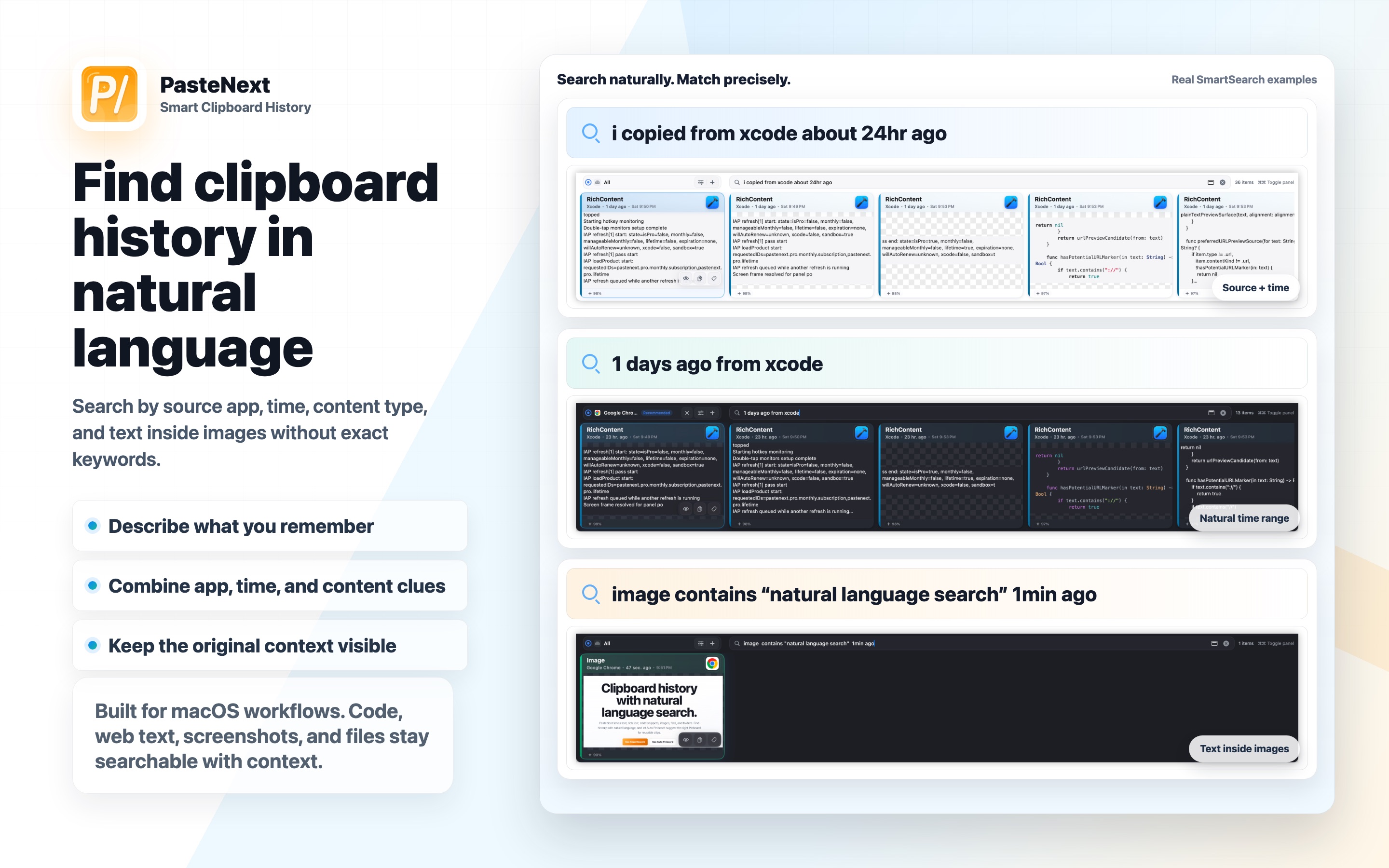
Find clipboard history with natural language, source apps, time ranges, content types, and text inside images.
Who it is forPeople who copy across browsers, editors, chats, and research tools.
What it solvesYou forgot the exact keyword, but remember the source, time, or meaning.
You will learnTurn scattered memory into one useful search sentence.
When to use SmartSearch
Use SmartSearch when you remember the shape of something, but not the exact text. Maybe it came from Chrome, maybe it was an Xcode log, or maybe a screenshot contained the word search.
You do not need a perfect keyword. SmartSearch works best when you combine clues into a short sentence:
Content clues, such as Audio, database connection, refund note.
Source clues, such as copied from Chrome, from VS Code, Xcode log.
Time clues, such as just now, yesterday, about 9 hours ago.
Type clues, such as image, code, link, file.
Context clues, such as support reply, launch asset, debug command.
Basic usage
1. Open the clipboard panel
Open PasteNext with your panel shortcut. By default, PasteNext opens with a double-tap modifier key, and you can change it to a custom shortcut in Settings.
After the panel opens, focus is usually near the search field. You can type a query immediately or browse recent history with arrow keys.
Panel search field with history records
2. Describe what you remember
Treat the search field like a short sentence, not just a keyword box. For example:
content copied from VS Code about 9 hours ago
Or:
Chrome content containing Audio copied yesterday
If you are looking for a screenshot, describe visible text inside the image:
image containing search from about 3 minutes ago
Natural language search results
3. Narrow the results
If there are too many matches, add more clues. The most useful filters are source app, time range, and content type.
Start broad:
configuration file
Then narrow it:
configuration file copied from VS Code this morning
And narrow it further:
JSON configuration copied from VS Code this morning
4. Confirm before using
When you find the likely item, check the source, time, and preview on the card. For long content, rich text, images, files, or web clips, preview before copying.
Use arrow keys to select a record.
Press Enter to copy the selected record.
Double-click a record to copy quickly.
Open preview for long text, rich content, or images.
Use direct paste when you want to paste back into the previous app.
Selected SmartSearch result
Search templates
Use these templates as starting points. Replace the bracketed text with your own clue.
Goal
Try this search
Content copied from an app
copied from Chrome [keyword]
A recent code snippet
code copied from VS Code around [time]
A debug log
Xcode log containing [error word]
A screenshot
image containing [visible text]
A link copied yesterday
browser link copied yesterday about [topic]
A reply template
reply about [customer/product/problem]
Examples
Recover a code snippet
You remember copying a configuration snippet from your editor, but not the variable name. Start with:
configuration copied from VS Code
If the result list is still large, add time:
configuration copied from VS Code about 9 hours ago
Search by VS Code source and time
Recover web research
If you copied an article from a browser yesterday and remember only the topic, search like this:
Chrome content about subscription pricing yesterday
Add page titles, button labels, or paragraph keywords when you remember them.
Search web research by Chrome source
Recover a screenshot
Screenshots are hard to find by filename. Instead, remember text visible in the screenshot:
image containing natural language search
This is useful for web screenshots, design references, error dialogs, and temporary image notes.
Search screenshots by visible text
Search habits
A good SmartSearch query usually includes at least two clues. Searching copy may be too broad. Searching copy from Chrome yesterday is much more precise.
Start with the rough content, then add source and time.
When you are unsure of the exact keyword, describe the meaning.
If there are many results, add app name and time range first.
For screenshots, remember visible text inside the image.
When you find something reusable, move it to the right PinBoard.
FAQ
Why can I not find something I just copied?
Confirm PasteNext is running and the content actually reached the system clipboard. If it was copied just now, wait a moment and try again. Some privacy-protected apps or special clipboard types may not be saved completely.
Why are there too many results?
The query is probably too short. Add source app, time range, or content type. For example, change API to API configuration copied from VS Code this afternoon.
Why does image search not always match?
Image search depends on recognizable text inside the image. If text is tiny, blurry, angled, or mostly graphical, use source app, time range, or related words instead.
Should I copy the result or put it in PinBoard?
Copy one-time content directly. Save reusable code, links, replies, and assets to PinBoard so you do not need to search again next time.