Permissions & launch
Confirm PasteNext is installed, running, and allowed to use Accessibility for paste-back into the active app.
ApplicationsLaunchpadSystem SettingsAccessibility
Find help for PasteNext installation, permissions, search, Pinboard, data management, and purchase restore. Start with the issue type, then move to guides, policies, terms, or email support.
Search the topic you are stuck on, then follow the matching path: permissions, search, data, and purchases.
Confirm PasteNext is installed, running, and allowed to use Accessibility for paste-back into the active app.
If you cannot find something, confirm it reached the system clipboard, then check source app, content type, time clues, and image text.
Manage history limits, ignored apps, local data, backup and restore, plus App Store purchase or restore status.
These screenshots point to real PasteNext surfaces, useful when describing a problem or confirming where a feature lives.
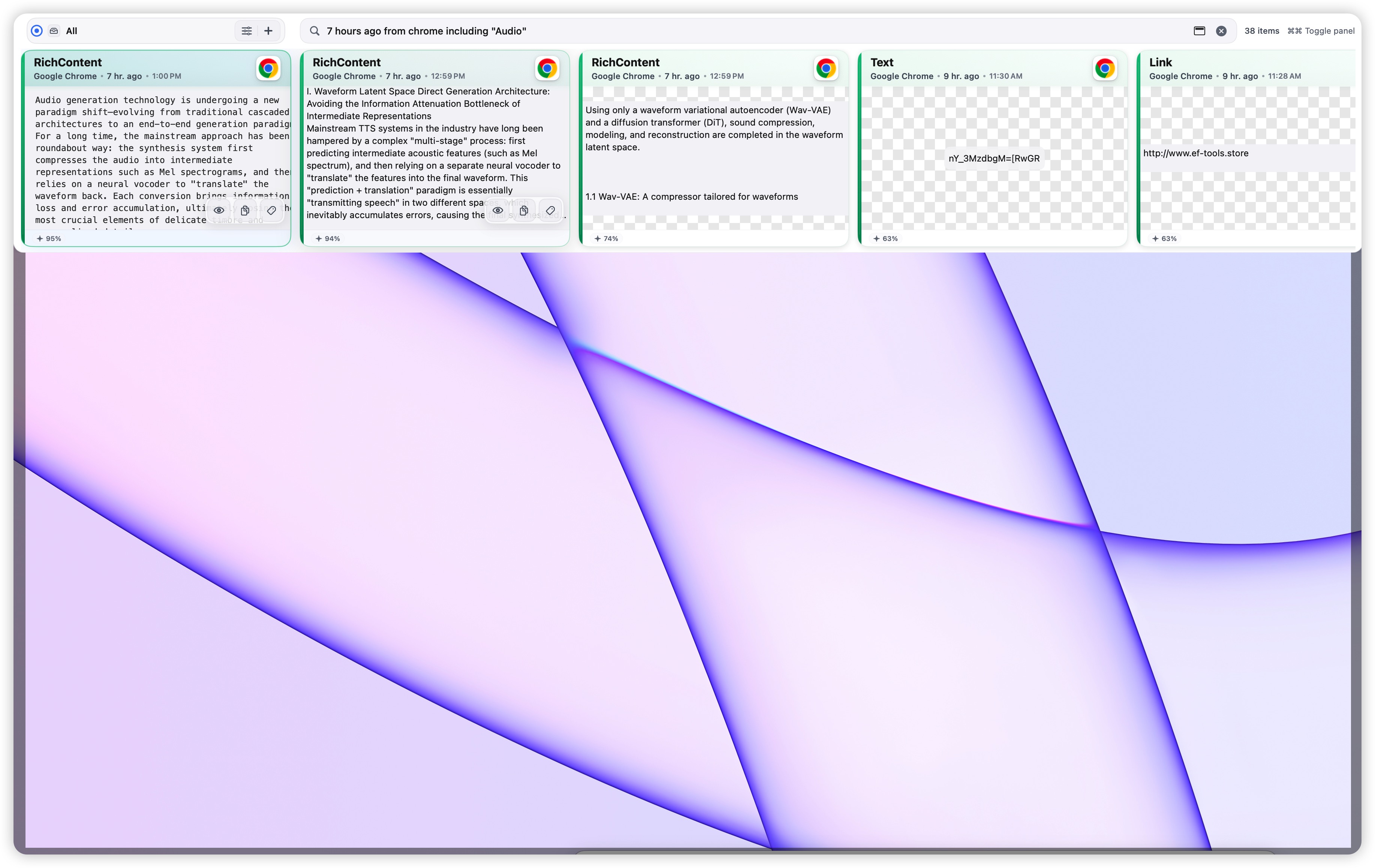
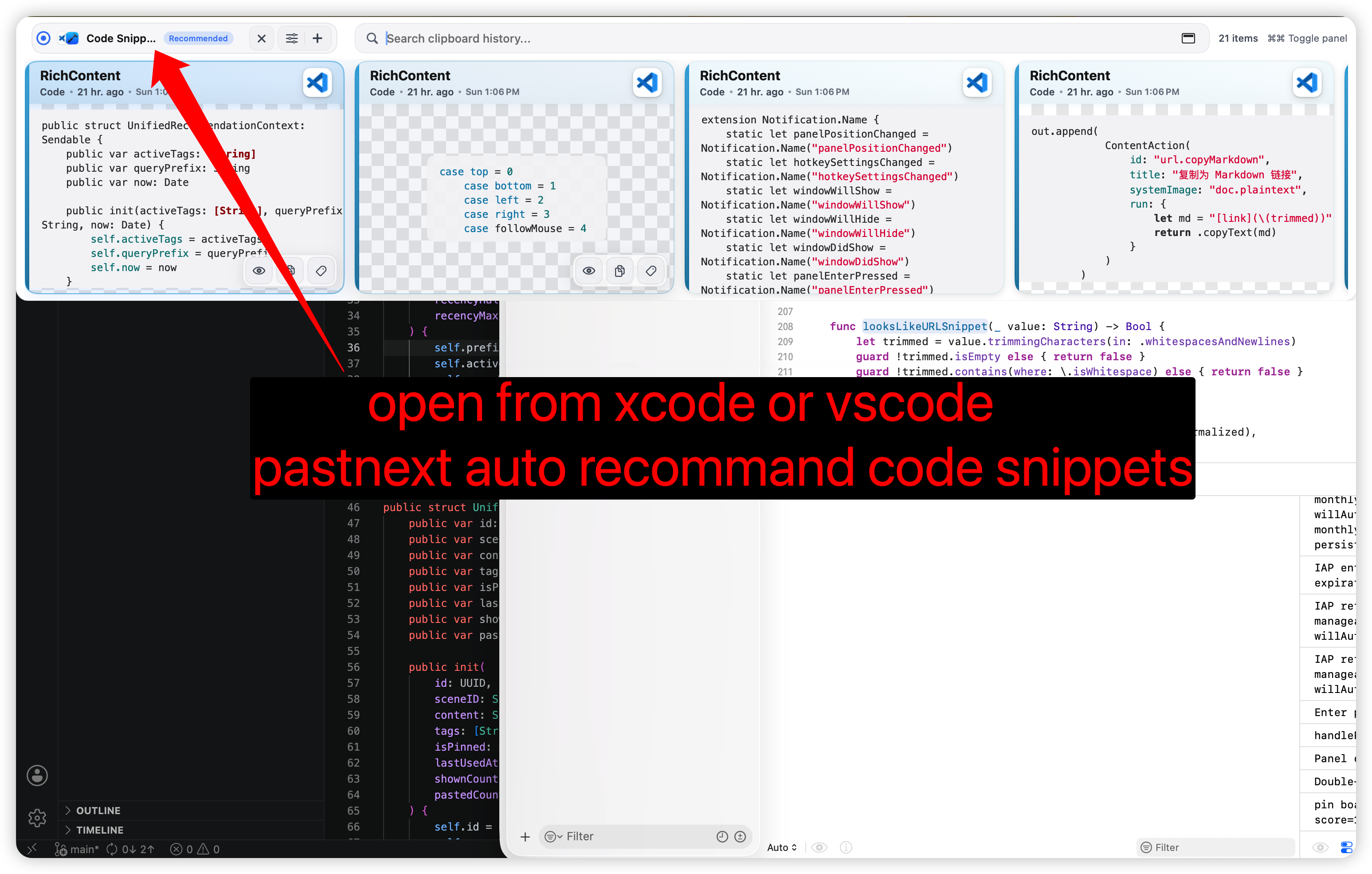
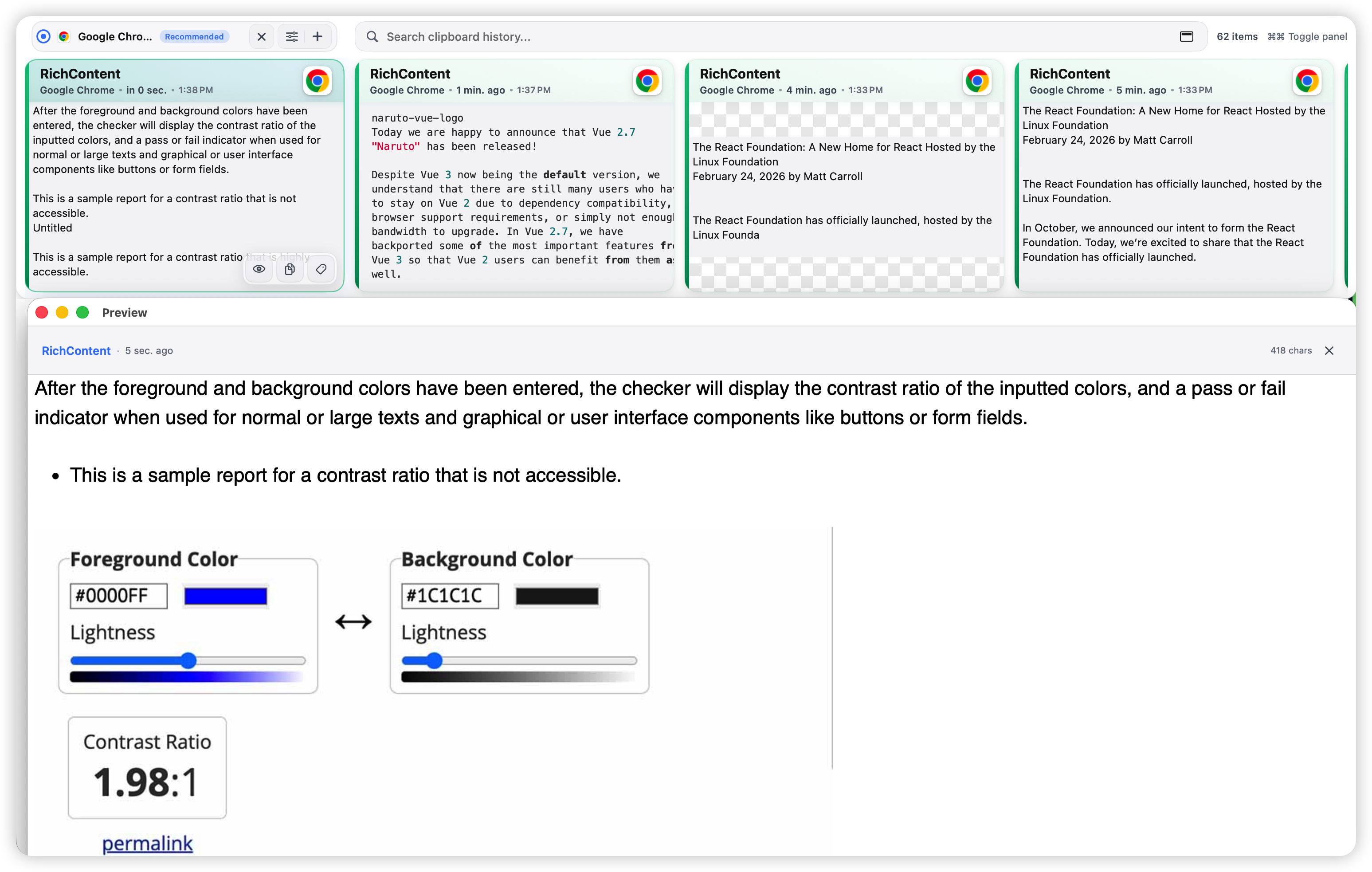
Use guides, policy pages, or email support when the page does not answer your question.
Email your question with PasteNext version, macOS version, reproduction steps, and screenshots.
Send emailInclude actual result, expected result, and reproducible steps. Do not submit sensitive clipboard content.
Email reportRead guides for SmartSearch, Pinboard, panel use, paste behavior, and backup or restore.
Open guidesLearn how PasteNext handles clipboard history, local data, purchase status, and support requests.
Read privacy policyReview the terms for the PasteNext website, support pages, and macOS app.
Read termsOpen PasteNext on the Mac App Store, or confirm purchase and restore availability.
Open App StoreNo matching help topics found. Try a broader term.
Core clipboard history relies on the system clipboard. Accessibility permission is used to identify the foreground app and paste selected items back into the active app. PasteNext does not use Accessibility permission to log keystrokes.
First confirm PasteNext is running and the item reached the system clipboard. Then check whether it came from an ignored app. Some protected apps or special clipboard types may not be fully saved.
Use remembered clues: source app, time, content type, meaning, or text inside copied images. For example, search for an invoice copied from Chrome yesterday.
Use ignored apps, history limits, and manual deletion. Do not send passwords, keys, tokens, or full clipboard databases through support email.
App Store purchases, renewals, cancellations, and refunds are handled by Apple. Confirm Apple ID, network, and subscription status first, then retry restore purchase in the app.