Learn how to open the PasteNext clipboard panel, use search, browse PinBoards, understand history cards, preview content, and delete items.
Who it is forNew PasteNext users who want to understand the main panel first.
What it solvesKnow what each area does, and avoid copying or pasting the wrong item.
You will learnOpen the panel, choose records, preview content, and adjust placement.
Open the clipboard panel
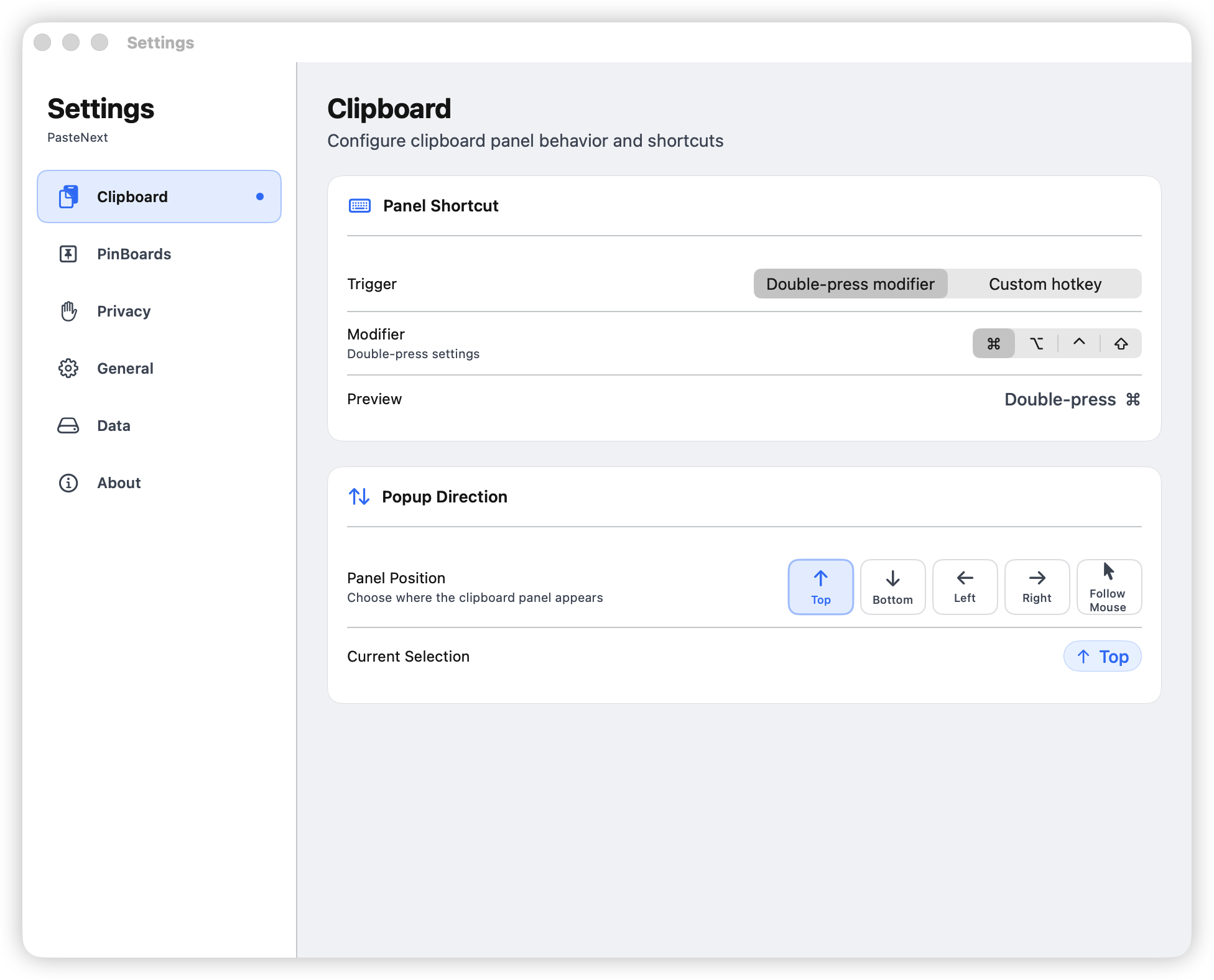
PasteNext can open the panel with a keyboard shortcut. The default trigger is double-tapping a modifier key. You can also change it to a custom shortcut in Settings.
In Settings, use the clipboard-related options to adjust:
The trigger used to open the panel.
Which modifier key responds to double tap.
A custom keyboard shortcut.
Where the panel appears on screen.
Settings area for configuring the panel shortcut
Understand the panel areas
Search field
The search field helps you find clipboard history. You can type ordinary keywords, or use natural language such as content copied from Chrome yesterday.
If there are too many results, add source app, time range, or content type clues.
Search field with a query
PinBoard rail
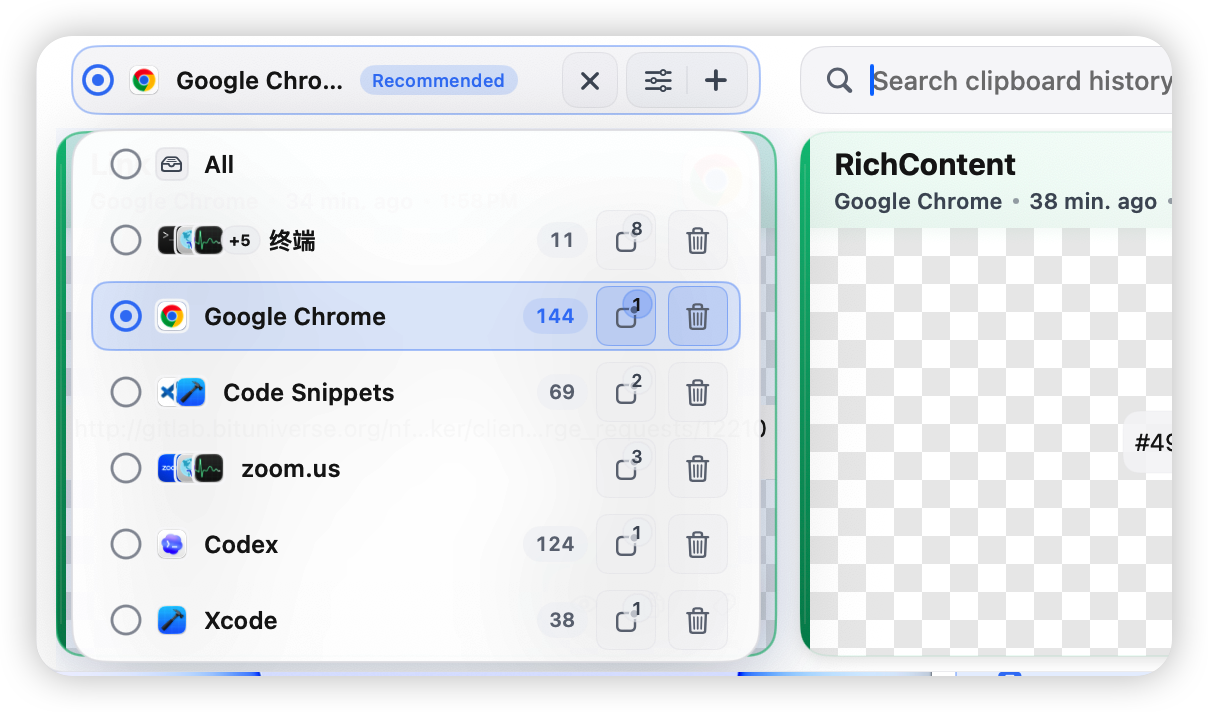
The PinBoard rail lets you switch between boards of reusable content. After you choose a PinBoard, the panel prioritizes items from that board.
When PasteNext sees that the current app is related to a PinBoard, it may also recommend that board here.
PinBoard rail with several boards and a recommendation
History cards
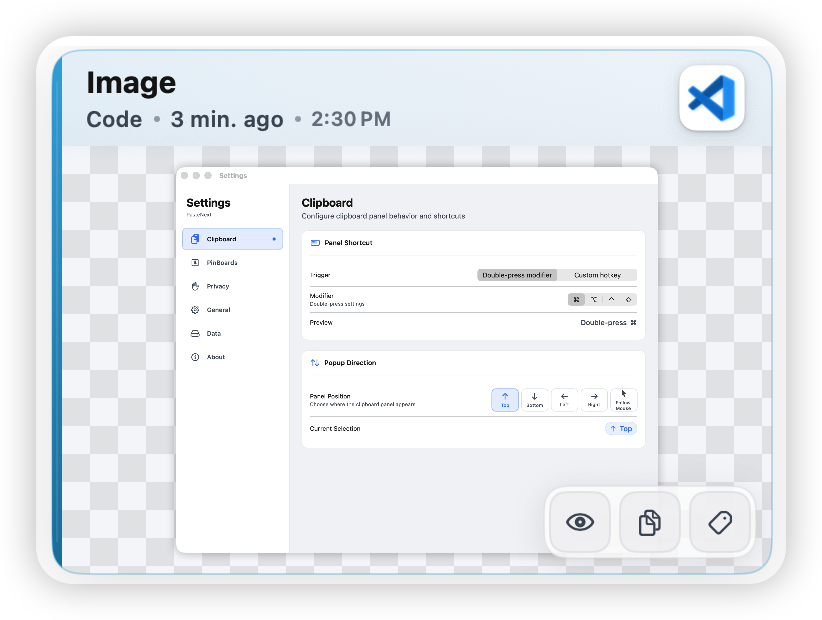
Each clipboard item appears as a card. A card usually shows the content type, source app, copy time, preview, and sometimes tags or search match details.
When reading cards, check the source and time first. That helps you avoid copying an older version of the content.
History card with source app, time, and preview
Footer hints
The bottom of the panel shows the current record count and basic keyboard hints. Use it to confirm how many items are visible and how to select or copy.
Basic actions
Select a record
After opening the panel, use arrow keys to move selection. Navigation follows the panel layout: left and right for top or bottom panels, up and down for side panels.
If focus is in the search field, arrow keys may move the text cursor first. After the cursor reaches the boundary, selection can move between cards.
Copy a record
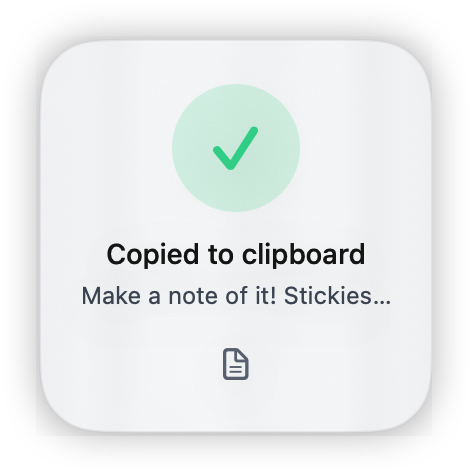
Select a record and press Enter to copy it back to the system clipboard. You can also double-click a record to copy it quickly.
After copying, return to the target app and paste with the system paste shortcut.
Selected record ready to copy
Paste directly back to the previous app
If you want to skip copying and switching back manually, use direct paste. PasteNext will try to return to the app you were using before opening the panel and paste the selected content there.
Direct paste requires Accessibility permission, because PasteNext needs to return focus to the target app and perform the paste action.
Preview long content
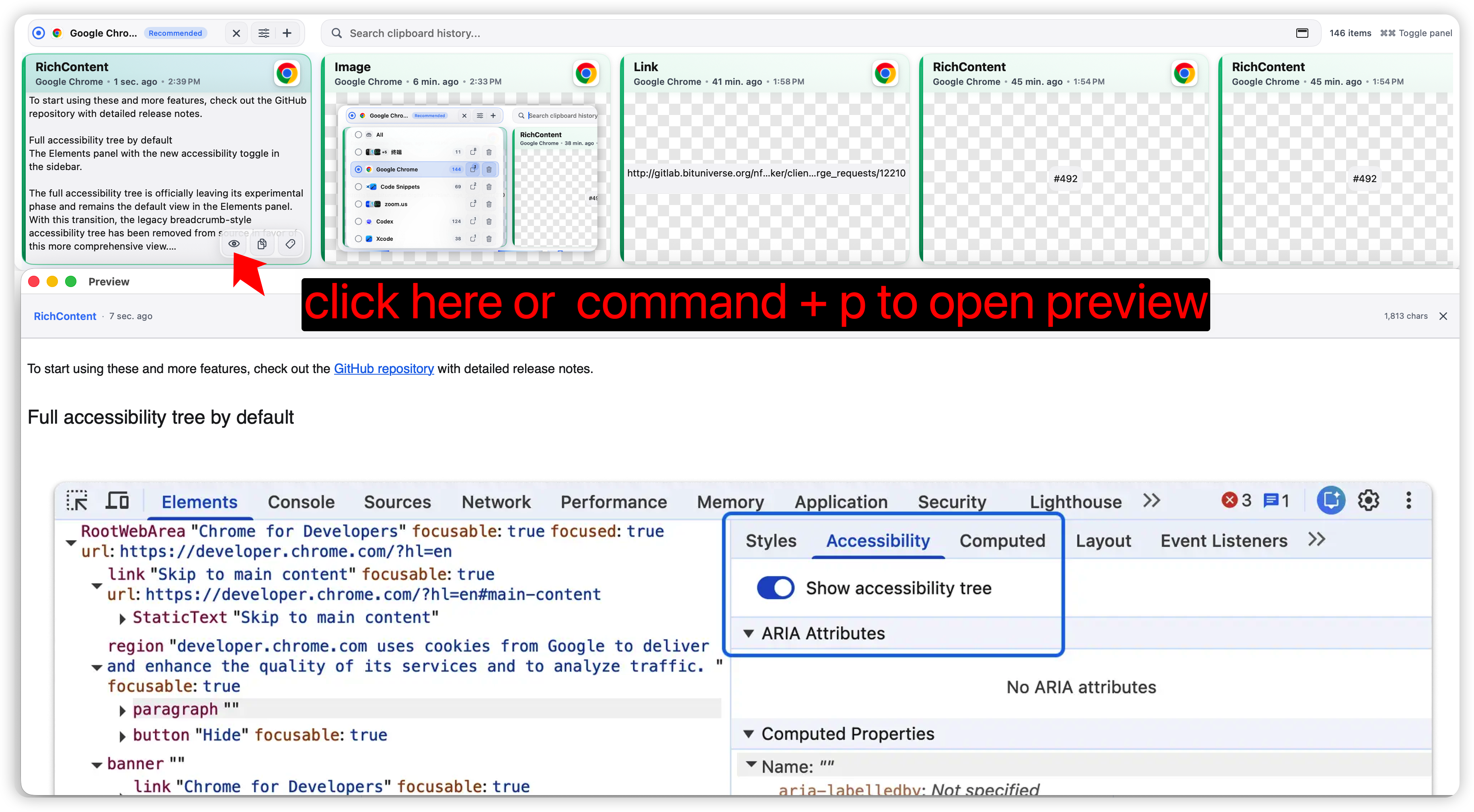
For long text, rich text, web clips, images, or files, preview before copying. This helps you avoid pasting the wrong version, truncated content, or an unrelated screenshot.
Previewing a clipboard record
Delete records you no longer need
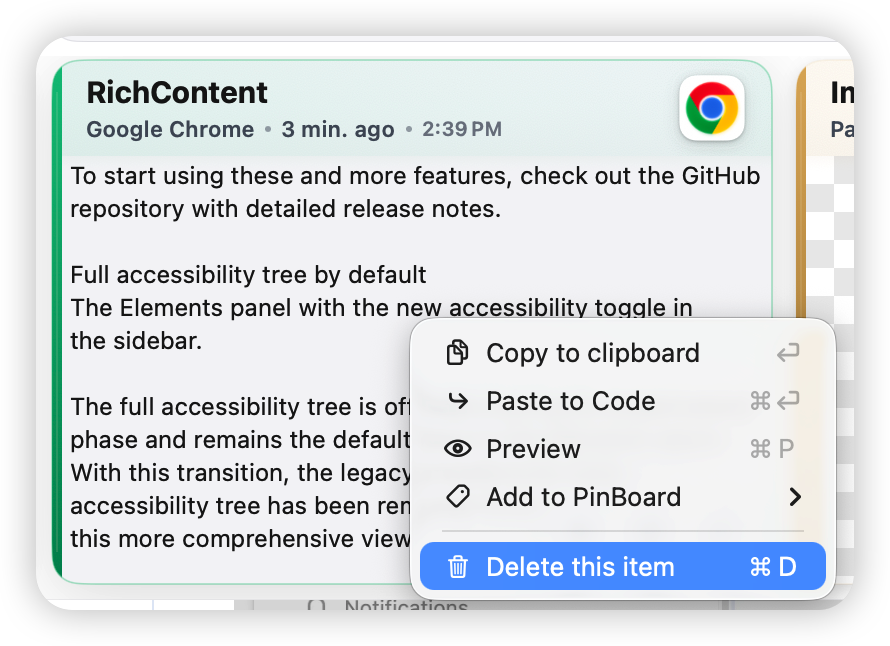
If a history item is outdated or should not be kept, delete it. Before deleting, make sure it is not part of a PinBoard you want to preserve.
Delete confirmation dialog
Adjust panel placement
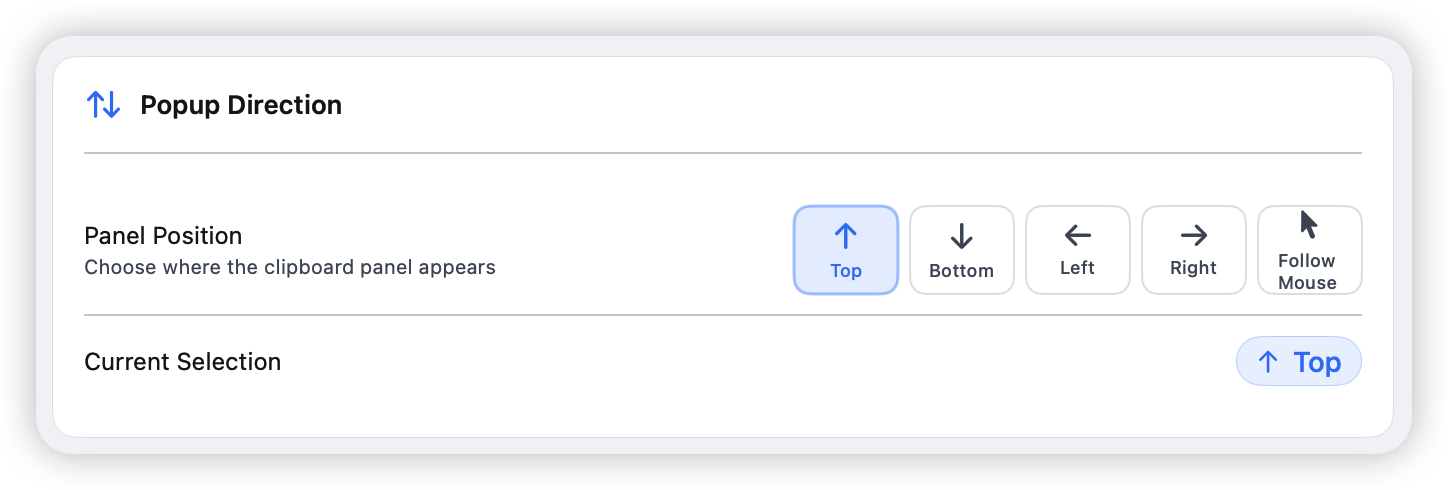
You can place the panel at the top, bottom, left, or right side of the screen, or make it appear near the pointer. Different placements fit different screen sizes and habits:
Panel placement
Best for
Bottom
Default choice, good for browsing cards horizontally
Top
Useful when the editor or chat window sits below
Left
Good for wide screens and vertical browsing
Right
Useful when your main content stays on the left
Near pointer
Helpful for multi-display setups or frequent window switching
Settings for choosing panel placement
Recommended first setup
If you are new to PasteNext, start with this simple setup:
Keep the default open trigger while you learn the panel.
Set panel placement to bottom or near pointer.
Create 2 to 3 common PinBoards.
Copy several content types: text, links, images, and code.
Open the panel and practice searching, selecting, copying, and previewing.
FAQ
Why will the panel not open?
First confirm PasteNext is running. If you changed the shortcut, check Settings to make sure it does not conflict with macOS or another app.
Why did direct paste not work?
Direct paste depends on Accessibility permission and the target app accepting paste. If permission is missing, enable it in System Settings. If the target app has no active input field, paste may fail.
Why did arrow keys not move between cards?
If focus is in the search field, arrow keys may edit the text cursor first. Confirm whether you are still editing the query, then move focus back to the cards.