Export ZIP backups, back up PinBoards only, protect current data before import, and build a lightweight backup habit.
Who it is forPeople moving devices, reinstalling macOS, archiving projects, or preserving local data.
What it solvesAvoid losing important clipboard memory during cleanup, migration, or import.
You will learnExport backups, import data, and save a pre-import backup.
When to back up
Export a backup in these situations:
Before moving to a new Mac.
Before reinstalling macOS.
Before clearing a large amount of history.
When a project ends and you want to archive related PinBoards.
Before an important app upgrade.
When moving useful PinBoards to another device.
You do not need to back up every day, but a backup is valuable whenever data might be lost or work memory needs to be preserved.
What backups include
PasteNext data export can be scoped for different scenarios.
Data range
Best for
All data
Device migration, reinstall, full restore
PinBoard data only
Reusable material migration, project archive, sharing organized results
Automatic current-data backup
Protecting local data before import
A full backup usually includes clipboard history, PinBoards, tags, and local search data. A PinBoard-only backup is lighter and focused on reusable content.
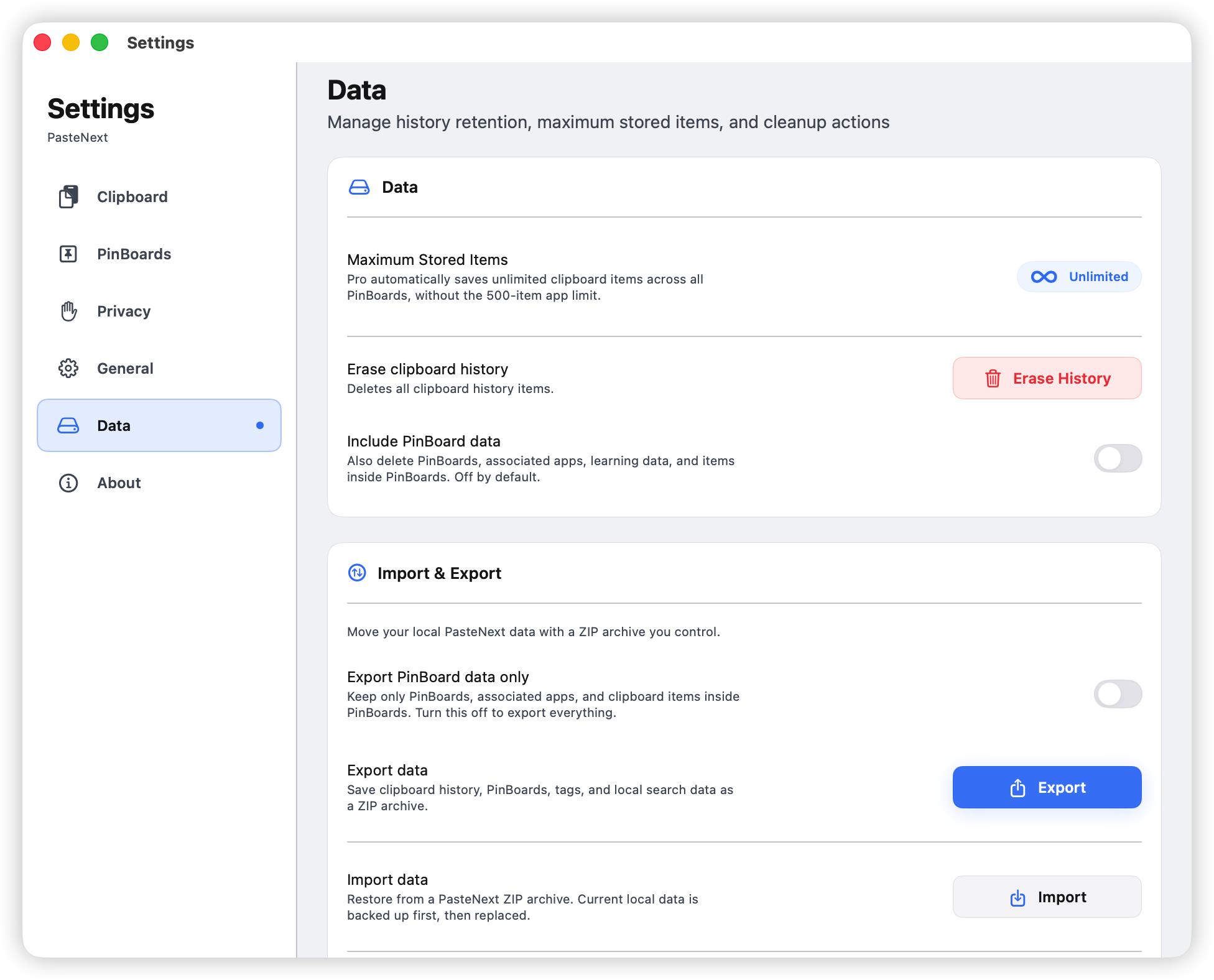
Export options for PinBoard-only and full export
Export data
1. Open data management settings
Open PasteNext Settings and find the data management area. This is where you manage retention, clear history, and import or export data.
2. Choose export scope
If you are moving everything to a new device, export all data.
If you only want to preserve project materials, templates, or reusable content, export PinBoard data only. The backup will be more focused and easier to archive by project.
3. Export a ZIP file
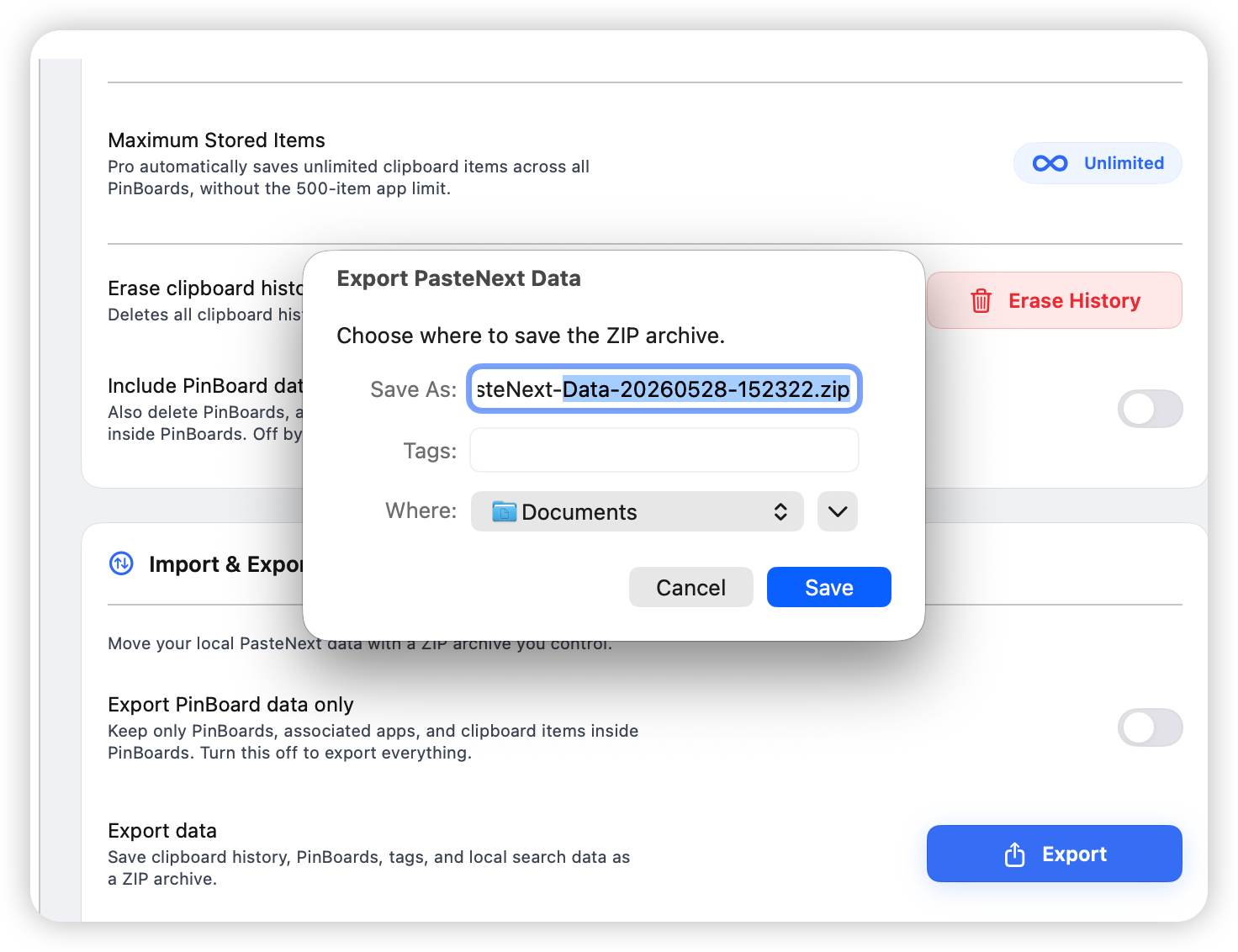
Choose a save location after clicking export. Keep the date in the filename, or add the purpose:
After export, confirm where the ZIP file is and that it has a reasonable size. Do this before relying on it from another device.
System save panel for a dated ZIP backup
Store backup files
Keep backup files somewhere you can find later and protect appropriately. Good choices include:
A local external drive.
A protected cloud folder.
An encrypted archive folder.
A project archive directory.
If the backup contains sensitive clipboard history, do not casually send the ZIP through chat tools or public cloud links.
Import data
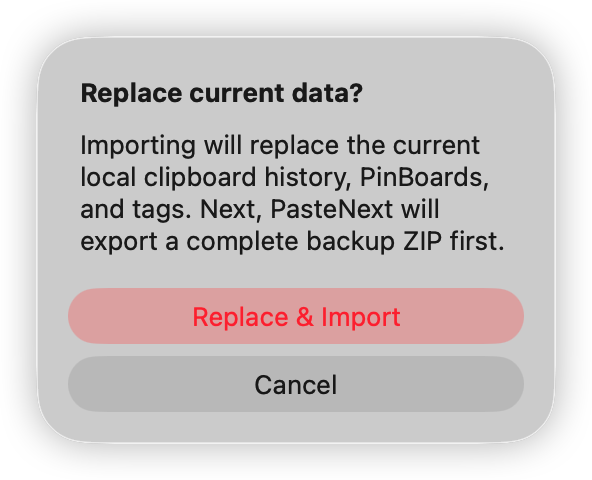
Import restores backup content into PasteNext. Because restore may replace current local data, PasteNext asks you to save a backup of current data before importing.
This is an important safety step. If you choose the wrong ZIP file or later realize the restored version is not the one you wanted, the pre-import backup lets you go back.
Prompt to back up current data before import
Import steps
Open data management in PasteNext Settings.
Choose Import Data.
Select a PasteNext ZIP file exported earlier.
Save a pre-import backup of current data when prompted.
Wait for import to finish.
Return to the panel and confirm history, PinBoards, and search work as expected.
Before clearing history
If you plan to clear clipboard history, decide whether PinBoard data should be preserved.
To reduce ordinary history count: clear history but keep PinBoards.
To reset everything: clear history and include PinBoard data.
When unsure: export a full backup first.
PinBoards usually contain content you intentionally organized for reuse, so be more careful before deleting them.
Backup habits
A lightweight backup routine is enough for most people:
Timing
Recommendation
Before major macOS upgrades
Export a full backup
At the end of a project
Export project-related PinBoards
Before clearing history
Export a full backup first
Before moving devices
Export a full backup and confirm the file is reachable on the new device
When storing sensitive material
Keep the ZIP in an encrypted location
FAQ
Can I rename the exported ZIP?
Yes. Keep date and purpose information in the name. Do not unzip it and keep only part of the files, or it may not restore as a complete backup.
Does PinBoard-only export include all history?
No. PinBoard-only export is for reusable content you intentionally organized. Use full export if you need complete clipboard history.
Will import overwrite current data?
Import restore may replace current local data, so PasteNext asks you to back up current data first. Save that pre-import backup carefully.
Where should I store backups?
Use a location you control and can access long term. External drives, encrypted folders, and protected cloud storage are good options.
What if search results look wrong after import?
First confirm you imported the intended ZIP file. If you imported the wrong backup, restore from the pre-import backup you saved earlier.